Made with AI
I created Flyweight by working with Claude, Anthropic’s AI, and I want to be upfront about that. It took a few hours in all. I think it’s really cool that we made it together.
What I asked for
I wanted a very small, light program. Right-click a video, compress it quickly, and be done. I also wanted custom profiles, for someone like a social media manager who needs videos at particular sizes.
Once it worked, I wanted to share it. So I asked for a website on Cloudflare, a link to the code on GitHub, and an installer to download.
Where I pushed back
One of the compression levels saved only 5 to 10 percent. I would never use that. Nobody compresses a video to save a little.
So I talked with Claude about what each level is for, and ended up with a much better set of defaults.
Trimming and cropping
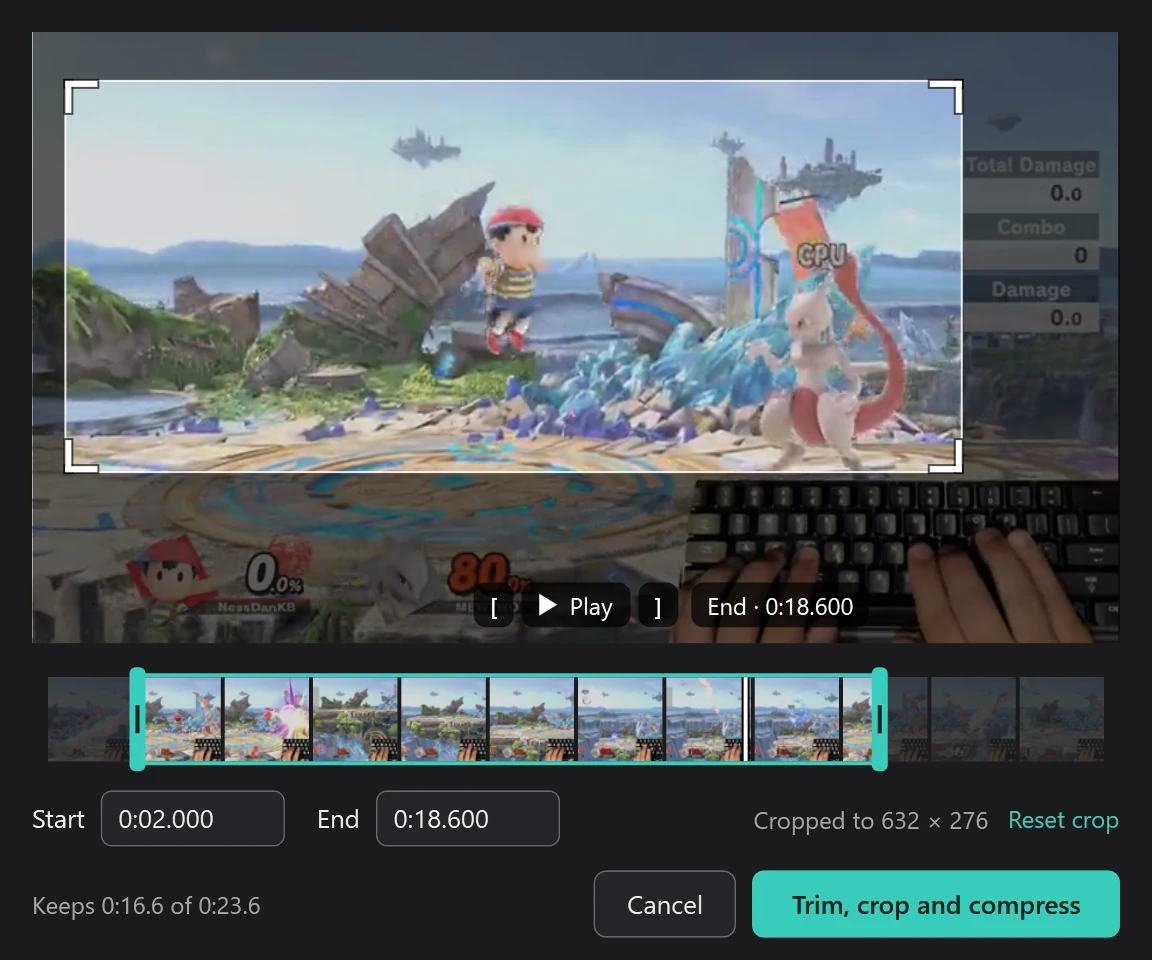
Later I wanted a really easy, simple way to trim a video when I bring it in. I vaguely remembered that trimming can get a little complicated, with the exact frame you pick versus the nearest keyframe. Flyweight cuts on the exact frame, with the sound still in step.
Then I wanted to play the video right there in the window. If you’re trimming, you don’t want to watch the whole thing to make sure it ends exactly where you need it to. So when you move the end, Play starts three seconds before it. While it plays, [ and ] say “start here” or “end here.”
I also wanted a quick and easy way to crop. Nothing complicated, just the four corners over the video. Hold a corner still and the picture zooms in, so you can get it exact.
Drop a video in, get a smaller one out
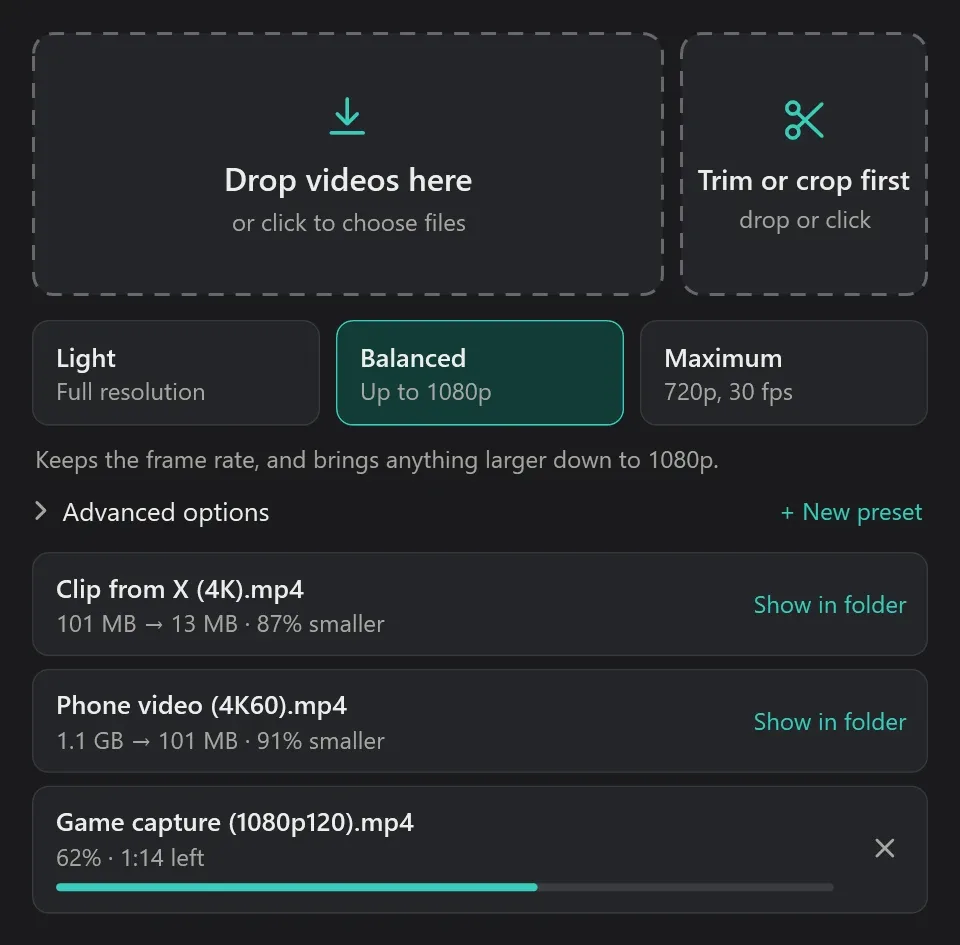
Flyweight is a free video compressor for Windows 10 and 11. Drop a video onto its window, or right-click any video and pick a level.
There are three levels. Light keeps the full resolution and frame rate, Balanced brings anything larger down to 1080p, and Maximum goes down to 720p at 30 fps. You can also save your own presets, including one that fits a video under a site’s upload limit.
The original video is never changed. The smaller copy is saved right next to it.
Small on purpose
The app is a single program of about 230 KB. It needs no admin rights, and nothing runs in the background or at startup. It uses the ffmpeg already on your PC, and offers to install it if there isn’t one.
Your videos stay on your PC. Flyweight has no accounts or tracking, and the code is public on GitHub.
Measured, not guessed
Every level compresses at the same quality. That quality setting was chosen by scoring test encodes with VMAF, Netflix’s measure of how a compressed video looks beside its original.
Measured through the app on real footage, the Balanced level made a 4K phone video 91% smaller and a 1080p game capture 92% smaller. The README has the full table.
When a video is already tightly compressed, Flyweight tries once more, a little harder. If the result still isn’t smaller, it leaves the original alone and creates no new file.